Rockstar Games Offline Setup Guide
Rockstar Games accounts may be required as a third-party account for certain games purchased through primary platforms such as Steam or Epic Games. Follow this guide to sign in to your Rockstar Games account and complete 2-Step Verification, then return to your main guide to continue the offline setup.
1. Important: Third-Party Account Notice
The Rockstar Games account provided with your G2X Games purchase is used as a required third-party account for supported games owned on your primary platform, such as Steam or Epic Games. It is not a standalone game purchase.
- Games are never downloaded or purchased directly inside the standalone Rockstar Games Launcher.
- Always install and launch the game through your primary platform account such as Steam or Epic Games where the game was purchased.
- When you click Play in Steam or Epic Games for the first time, it will automatically launch the official Rockstar Games Social Club sign-in prompt.
- Do not open the standalone Rockstar Games Launcher first. Always launch through your primary platform to ensure proper account linking.
2. Sign In to Rockstar Social Club
When the Rockstar Games sign-in window appears, sign in using the Rockstar account credentials provided on your G2X Games My Games library page.

- Enter the provided Rockstar account email into the Email field.
- Enter the provided password in the Password field.
- Make sure Auto sign-in is enabled so Rockstar Games can remember the account for future launches.
- Click the Sign In button to continue.
3. Enter 2-Step Verification Code (2FA)
When prompted for 2-Step Verification, retrieve your security code using the G2X Games automated security code retrieval service.
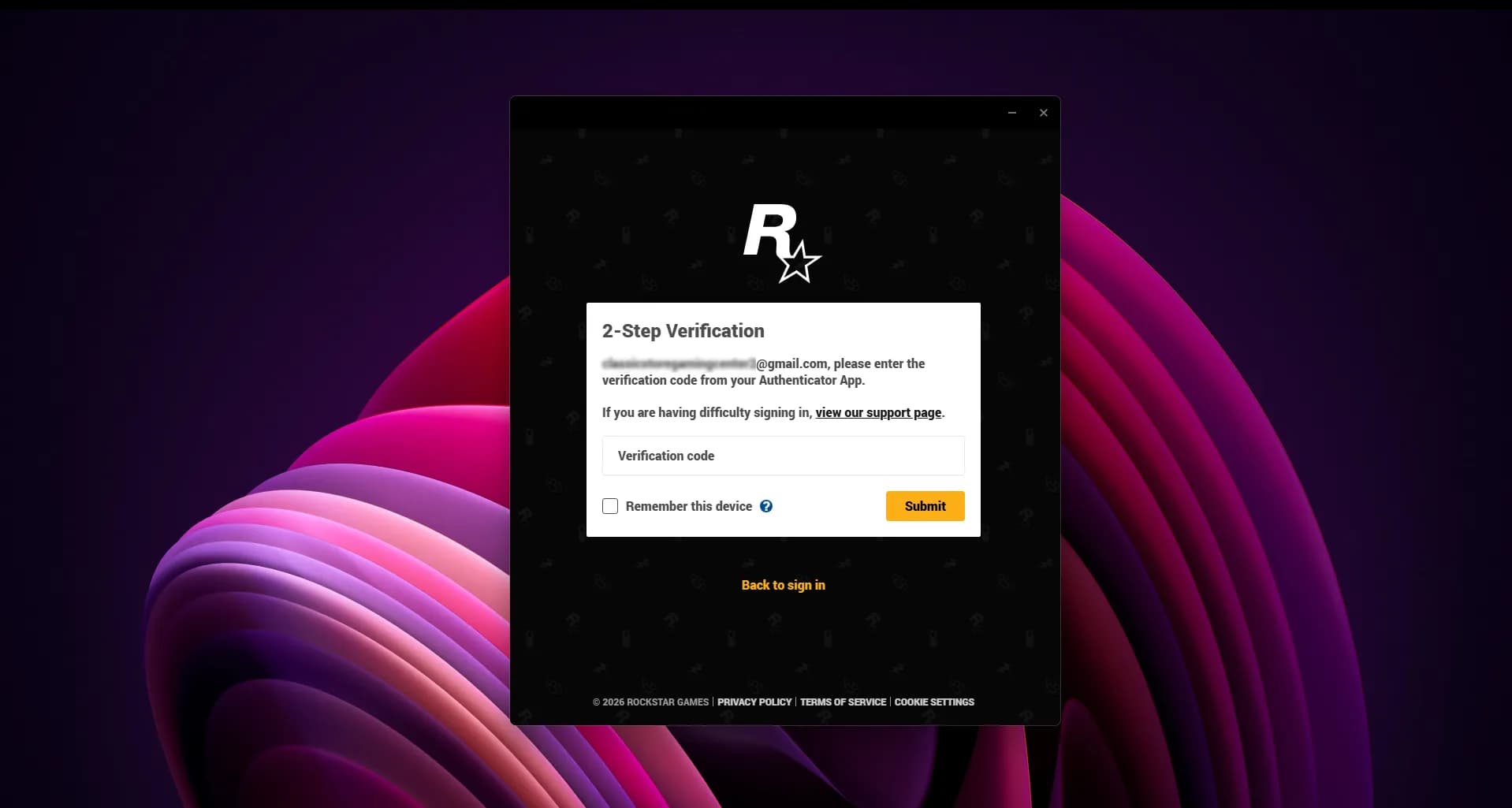
- Keep the Rockstar Social Club 2-Step Verification window open. Do not close or cancel it.
- Open your web browser, sign in to your G2X Games account, and navigate to your My Games library.
- Open the game's Overview page and click the Get Code button to retrieve your current verification code.
- Enter the retrieved 6-digit code into the Verification code field in the Rockstar prompt and click Submit.
4. Continue with Your Primary Platform Guide
Once your Rockstar Games account has been successfully linked, return to your primary platform guide or the main Offline Activation Guide to complete the remaining offline setup.
- Allow the game to load to the Main Menu, then launch Story Mode once while connected to the internet to complete the required initial license and DRM activation.
- Once you reach Story Mode, cleanly exit the game using the in-game Quit / Exit option.
- Return to your primary platform guide, such as Steam or Epic Games, or follow the Offline Activation Guide to disable cloud saves, configure offline mode, and begin playing.
Frequently Asked Questions
Common questions and solutions for Rockstar Games offline mode
Other Platform Guides
Explore instructions for other gaming launchers


Still Need Help?
Having trouble with your game activation? Check our other guides or contact G2X Games Support for assistance.