Offline Activation Games Guide
A complete step-by-step guide to activating, configuring, and playing your purchased offline activation games with a smooth offline experience across supported platforms.
How It Works
An Offline Account gives you access to the supported single-player content of your purchased game, including available story modes, DLCs, and supported graphics settings, at a fraction of the full retail price.
- Genuine Files: Download authentic game files directly through official Steam, EA, Ubisoft, or other supported platform servers. No cracks or malware.
- Lifetime Updates: Receive supported game updates and patches through the official platform launcher for the lifetime of your access.
- Easy and Simple: No third-party software or additional tools are required. Sign in, Download, and play using the official platform launcher with our straightforward step-by-step instructions.
1. Access Your Purchased Games in "My Games" Library
All of your purchased games are accessible directly in your personal library at Dashboard → My Games. You can view all of your games here with license status, purchase details, and supported platform information. Simply select the game you want to activate and play to open its game page, where you can access the required credentials, code-retrieval options, and activation instructions.

- Open your Dashboard and Navigate to My Games.
- Find the game you want to activate.
- Select the game to open your game's management page.
2. View Game Details & Reveal Account Credentials
On the game details page, you can find all the information required to activate and access your game, including game-specific instructions, account credentials, and automated 2FA code retrieval options.
To view the account credentials, click the Account Credentials / Offline Account card. You will then see the Username/ID and Password provided for the platform associated with your game, such as Steam, Ubisoft Connect, EA app, or other supported platforms.

Enable Two-Factor Authentication if Required
If you have not already enabled Two-Factor Authentication on your G2X Games account, you will be prompted to set it up before you can view credentials or retrieve 2FA codes. We require 2FA to ensure maximum security, protect your purchased licenses from unauthorized access, and provide a secure, reliable service for all users.

- Follow the prompt to enable 2FA.
- Complete the 2FA setup on your G2X account.
- Return to the game page.
- Try accessing the functionality again.
3. Sign In to the Game Platform & Request Security Code
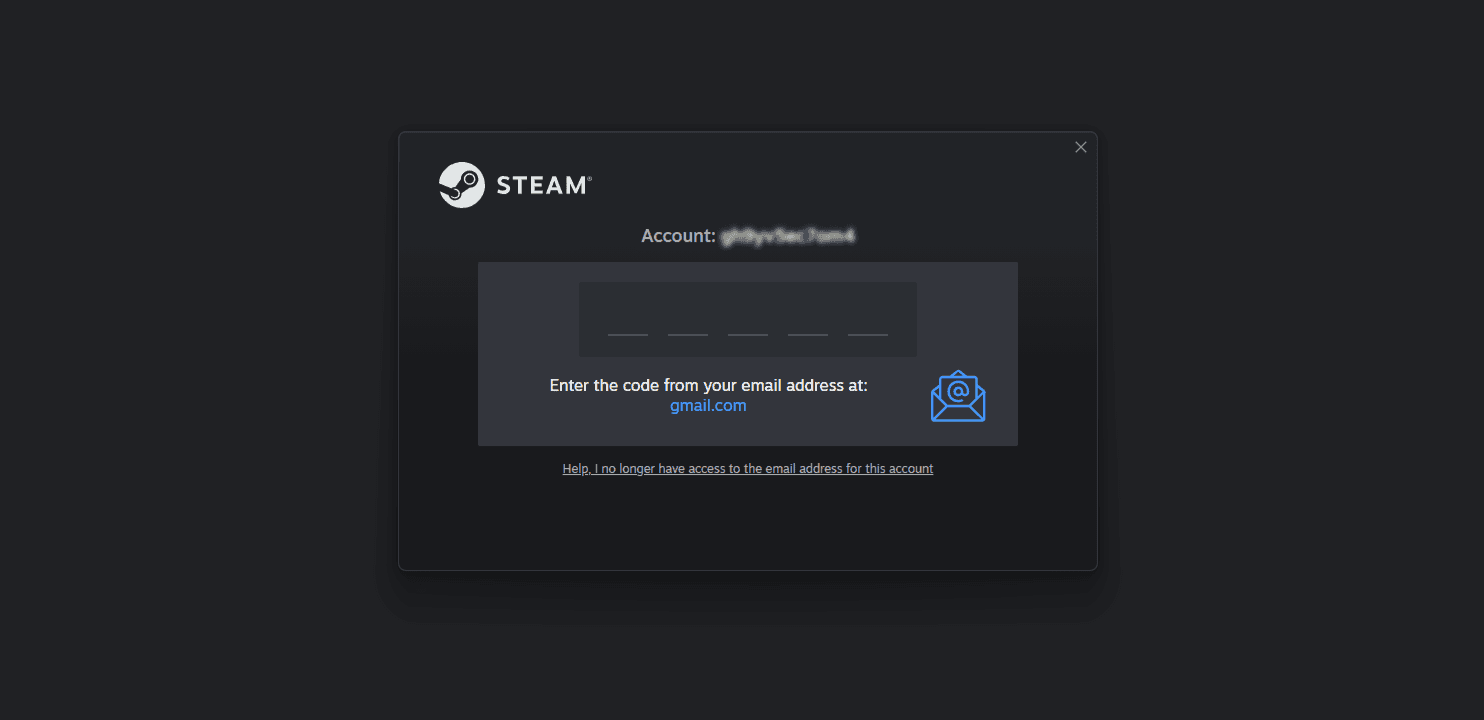
Use the credentials shown on the Account Credentials / Offline Account card to sign in to the platform required for your game, such as the Steam desktop application. When signing in, make sure to select Remember me if the option is available. This helps keep the account signed in on your device for the offline activation process.
After entering the Username/ID and Password, the platform may ask you to enter a security or verification code. Return to your G2X Games game page and use the Get Code option to retrieve the required security code.
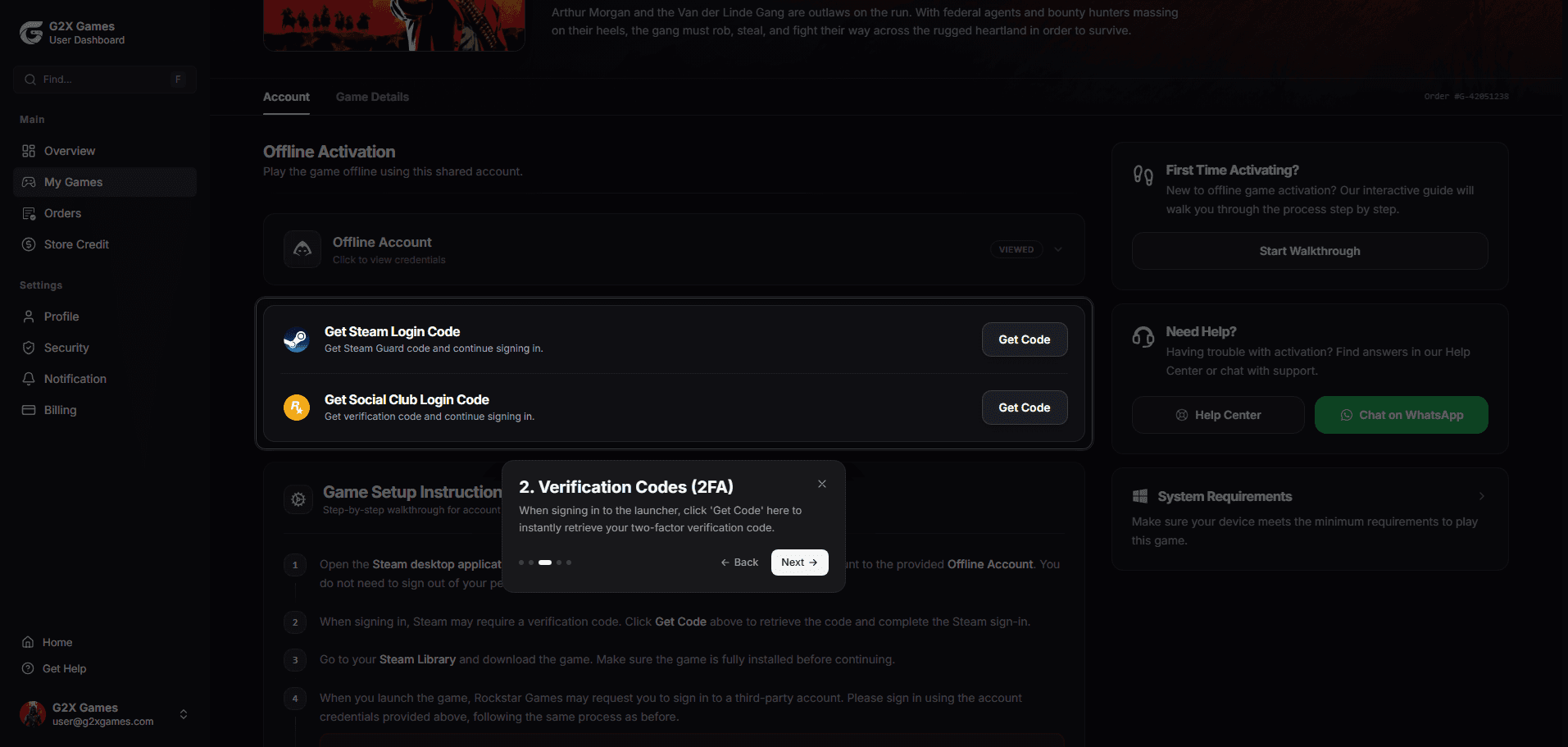
Automated Security Code Retrieval Service
You can access our automated code retrieval service at any time. Simply click the "Get Code" button in your game page:
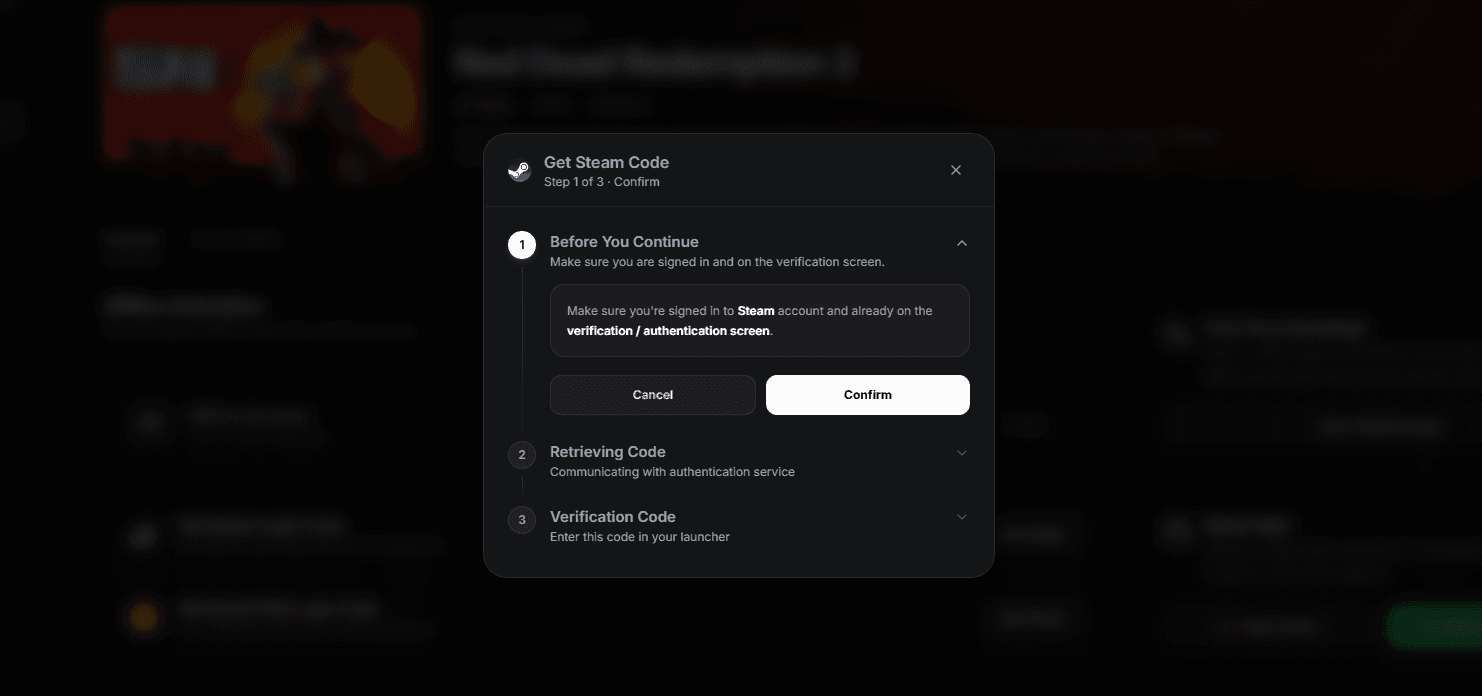
4. Confirm the Code Request in the Popup Modal
After clicking Get Code, a confirmation modal will appear. Review the notice, then click Continue once you have already signed in to the game launcher and are on the screen where the security or verification code is requested.
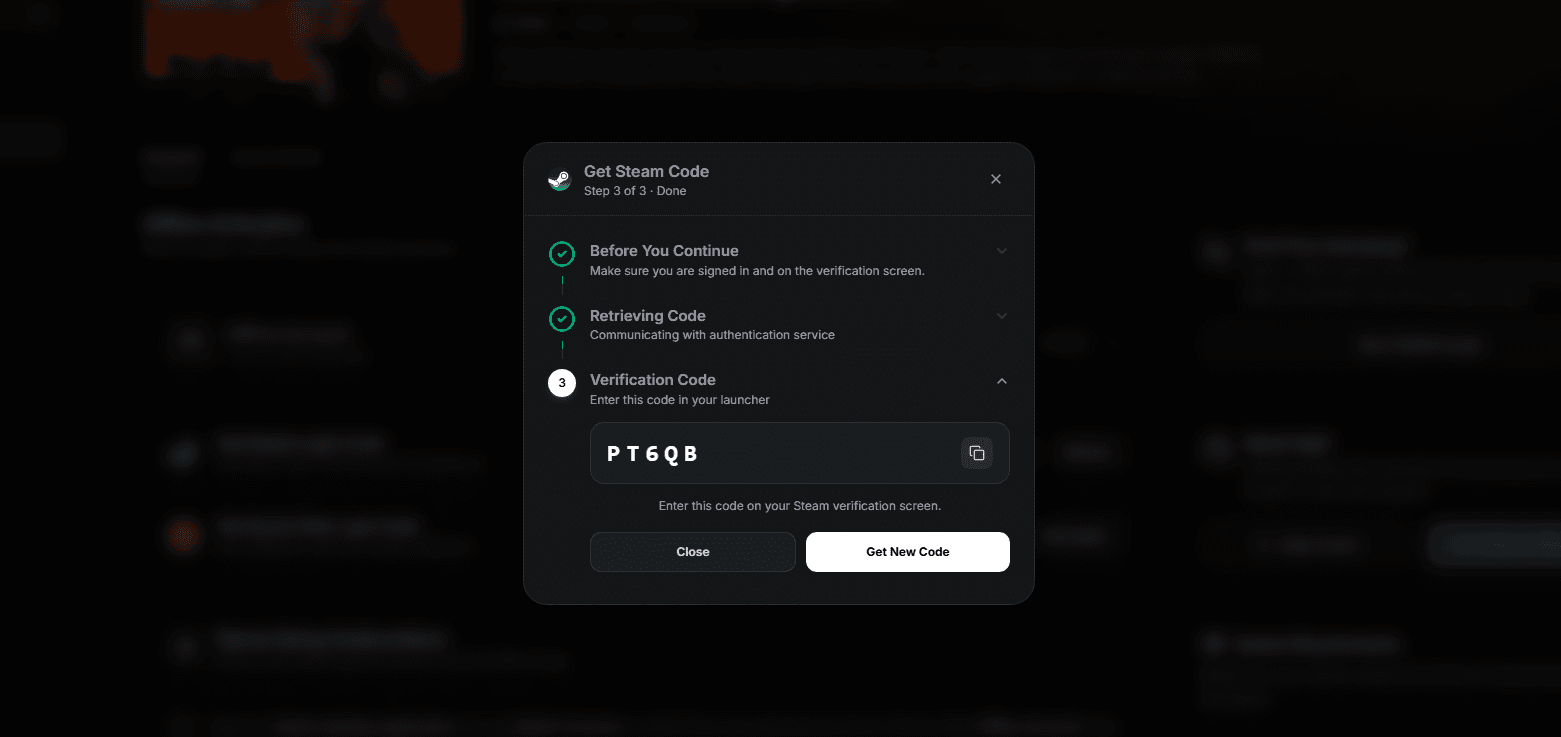
5. Receive Your Security Code & Complete Sign-In
Our automated system provides the security code required to complete your sign-in to the game launcher.
Copy the code and enter it into the security or verification code field in your game launcher. If available, select Trust Me, then complete the sign-in process.
- Enter the code into your game launcher before the countdown timer expires.
- If available, select Trust Me to help keep you signed in on your device.
- If the code expires before you enter it, click Get Code again to retrieve a fresh code.
6. Follow In-Page Offline Instructions & Enjoy Your Game
After successfully signing in, scroll down to the Instructions section at the bottom of your G2X Games game page. It contains step-by-step instructions tailored specifically to your game and launcher. Follow each instruction carefully to complete the offline activation process.
Launch the game once while online to complete the required activation, then switch the launcher to Offline Mode. For instructions on setting up Offline Mode for your launcher, refer to our Platform-Specific Sub-Guides.

Download the game through the official platform launcher to install it on your device.
Launch the game once while online and reach the main menu. This allows required shaders to compile and the local DRM token to register.
After completing the initial online launch, switch the launcher to Offline Mode and disable Cloud Saves if instructed for your platform.
The 4 Golden Security Rules
Follow these mandatory rules to protect your account access, maintain your license eligibility, and keep your local save data safe.
Strictly No Credential Changes
Never change the account email, password, phone number, or security settings. These accounts are provided for offline activation, and unauthorized changes may result in the account being flagged or access being revoked.
No Online Multiplayer or Matchmaking
Offline Accounts are designed strictly for single-player campaigns and story modes. Do not use the account for online multiplayer, matchmaking, or other online features that may affect access for other users.
Disable Cloud Save Syncing
Disable Cloud Saves when instructed for your platform. Keeping your save files stored locally helps prevent cloud synchronization from overwriting or conflicting with your local progress.
One PC Per Activation
Each Offline Account activation is intended for use on one PC. Do not share the credentials with others or attempt to activate the same account on multiple computers, as this may compromise access to the account.
Platform-Specific Sub-Guides
Select your platform for exact launcher menu paths and offline toggles



When a game patch is released, temporarily switch the launcher to Online Mode and update the game. Once the update is complete, launch the game once while online to refresh the required local DRM token, then switch the launcher back to Offline Mode before resuming play.
Single-player game saves are typically stored locally within your Windows user profile, such as %USERPROFILE%\Saved Games, %APPDATA%, or %LOCALAPPDATA%, depending on the game. Your local progress remains stored on your PC, and the exact save location may vary by game.
Frequently Asked Questions
Quick answers for offline activation and DRM questions
Still Need Help?
Having trouble with your game activation? Check our other guides or contact G2X Games Support for assistance.