Steam Offline Setup Guide
Follow this step-by-step guide to sign in to your G2X Games Steam account, retrieve your Steam Guard security code, install your game, configure Steam for offline play, and enjoy your supported single-player game offline.
1. Sign In to Steam
Open the official Steam desktop client and sign in using the shared Steam account credentials provided on your G2X Games My Games library page.
1.1. Switch from Your Personal Account
If you are currently signed in to your personal Steam account, use Steam’s built-in Account Switcher to sign in to the G2X Games-provided account.

- Click your profile name or avatar in the top-right corner.
- Select Change Account or Sign Out of Account, depending on the option available in your Steam client.
- Steam will take you to the sign-in screen, where you can enter the user id and password.
1.2. Sign In Using Provided Credentials
Enter the User ID and Password shown in the Steam account credentials section on your G2X Games library page.

- Copy the User ID and Password from G2X Games.
- Enter the credentials into Steam’s desktop client sign-in window.
- Enable Remember me so Steam keeps the account signed in on your device.
- Click Sign In to continue.
2. Retrieve Steam Guard Code
After entering the provided credentials, Steam will display a Steam Guard verification screen requesting a Steam Guard code. Use the G2X Games automated code retrieval service to obtain the required code.
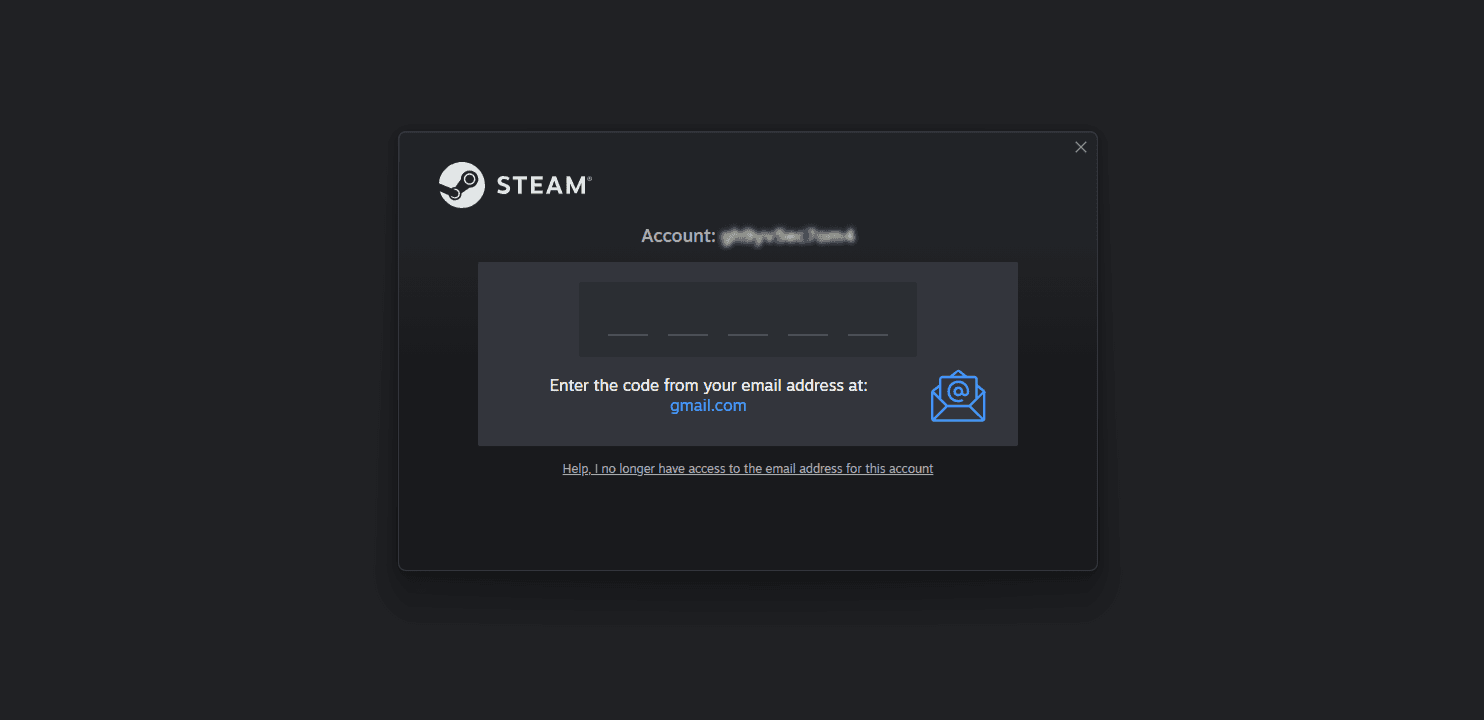
- Keep the Steam Guard verification screen open. Do not close or cancel it.
- Open your browser and navigate to
Dashboard → My Games. - Locate the game and click the Get Code button.
- G2X Games will securely retrieve and display the current Steam Guard security code.
- Enter the code into the Steam Guard verification field to complete the sign-in process.
3. Download the Game
Open your Steam Library and download the game directly through the official Steam client.
3.1. Install the Game
Start the game installation directly through Steam.

- Click the Library tab at the top of the Steam client.
- Locate your purchased game in the left sidebar.
- Click the INSTALL button.
- Select your preferred installation drive and click Next.
3.2. If Install Button Is Not Showing
If another computer is currently connected to the Steam account, Steam may display a green STREAM button instead of the INSTALL button.

- Look for the small dropdown arrow on the right side of the green STREAM button.
- Click the dropdown arrow.
- Select This device from the menu.
- Steam will switch the button back to the INSTALL button for your PC.
4. Turn Off Steam Cloud Saves
Before launching the game, configure Steam to keep all your save files stored locally on your PC.
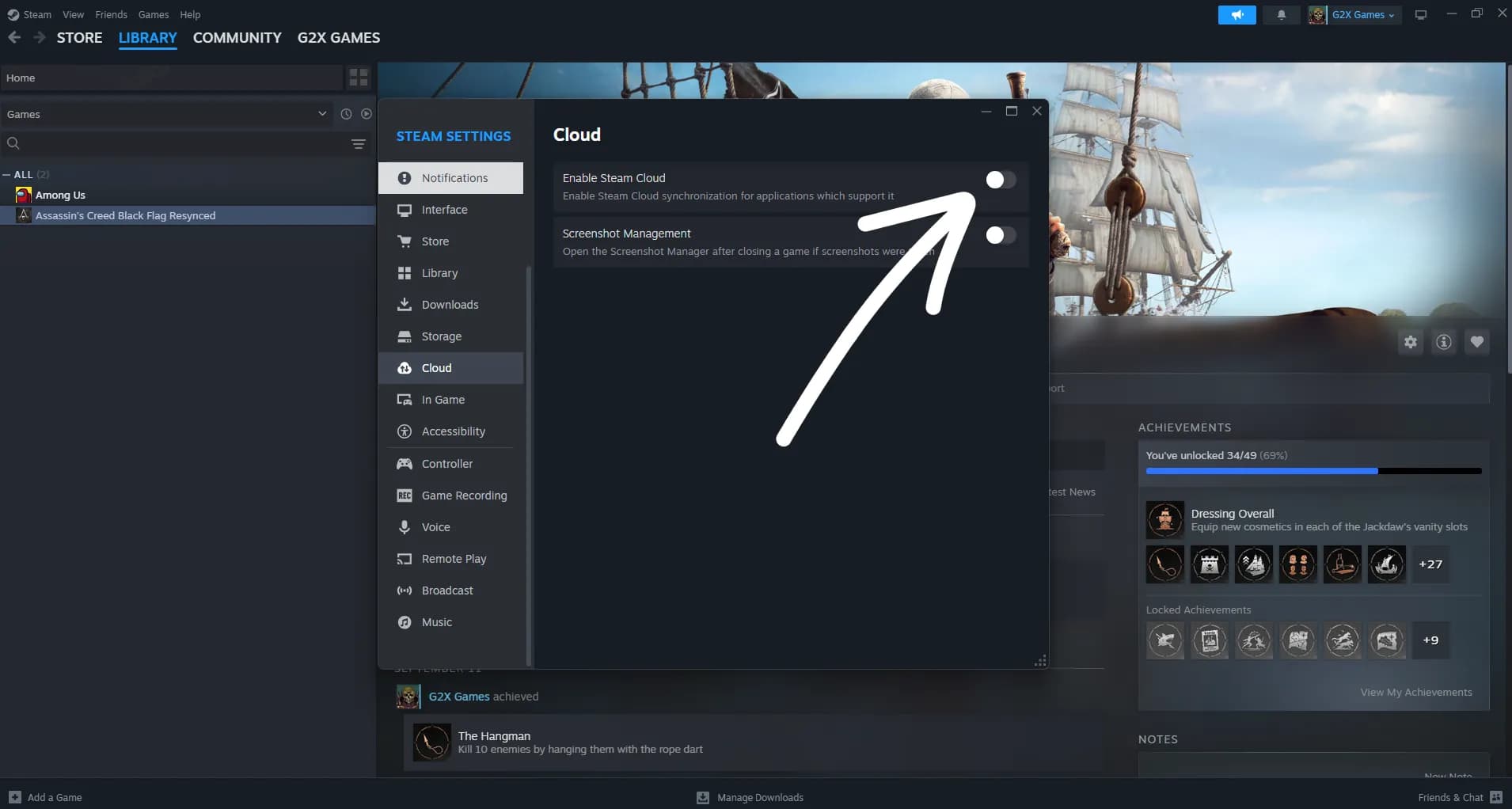
- In the top-left menu bar of Steam, click Steam and select Settings.
- In the left sidebar of the Settings window, click Cloud.
- Turn OFF the Enable Steam Cloud toggle. The toggle should appear gray and inactive.
5. Disable Remote Play
Turn off Steam Remote Play to prevent unexpected streaming requests and preserve local gaming performance.
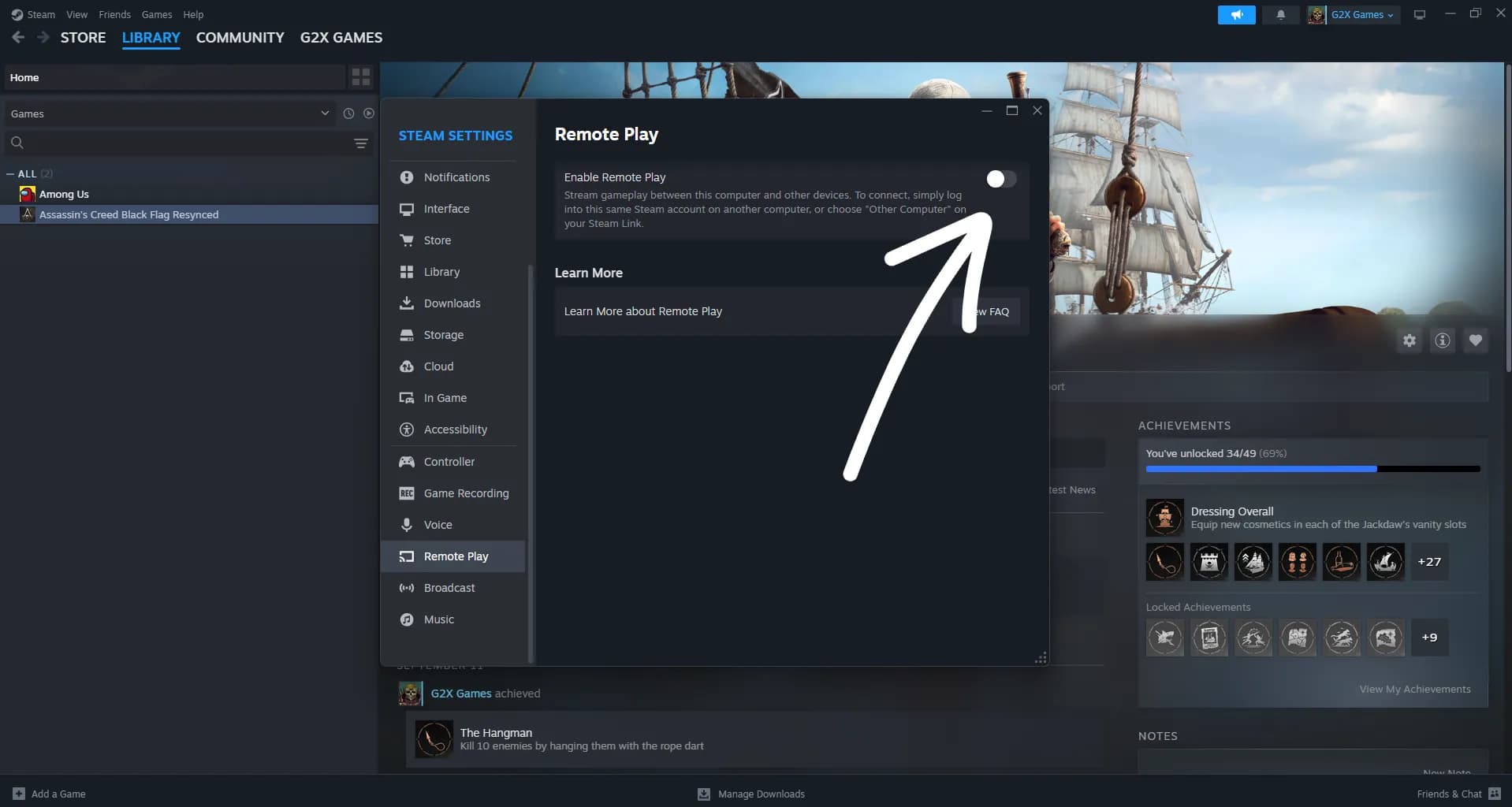
- In the same Steam Settings window, click Remote Play in the left sidebar.
- Toggle OFF the Enable Remote Play.
- Close the Settings window by clicking the X in the top right.
6. First-Time Launch While Online
The game must be launched once while connected to the internet to complete the required license and DRM activation on your PC.
- Click the PLAY button in Steam while your PC is still connected to the internet.
- Allow Steam to install any required prerequisite packages, such as DirectX or Microsoft Visual C++ Redistributables.
- Allow the game to load through the opening videos and reach the Main Menu. If shader compilation is required, wait for it to complete.
- Configure your preferred resolution and graphics settings.
- Cleanly exit the game using the game's in-game Quit / Exit option.
7. Switch Steam to Offline Mode
Switch Steam to Offline Mode to prevent online Steam synchronization and reduce the risk of your session being interrupted by another user accessing the shared account.
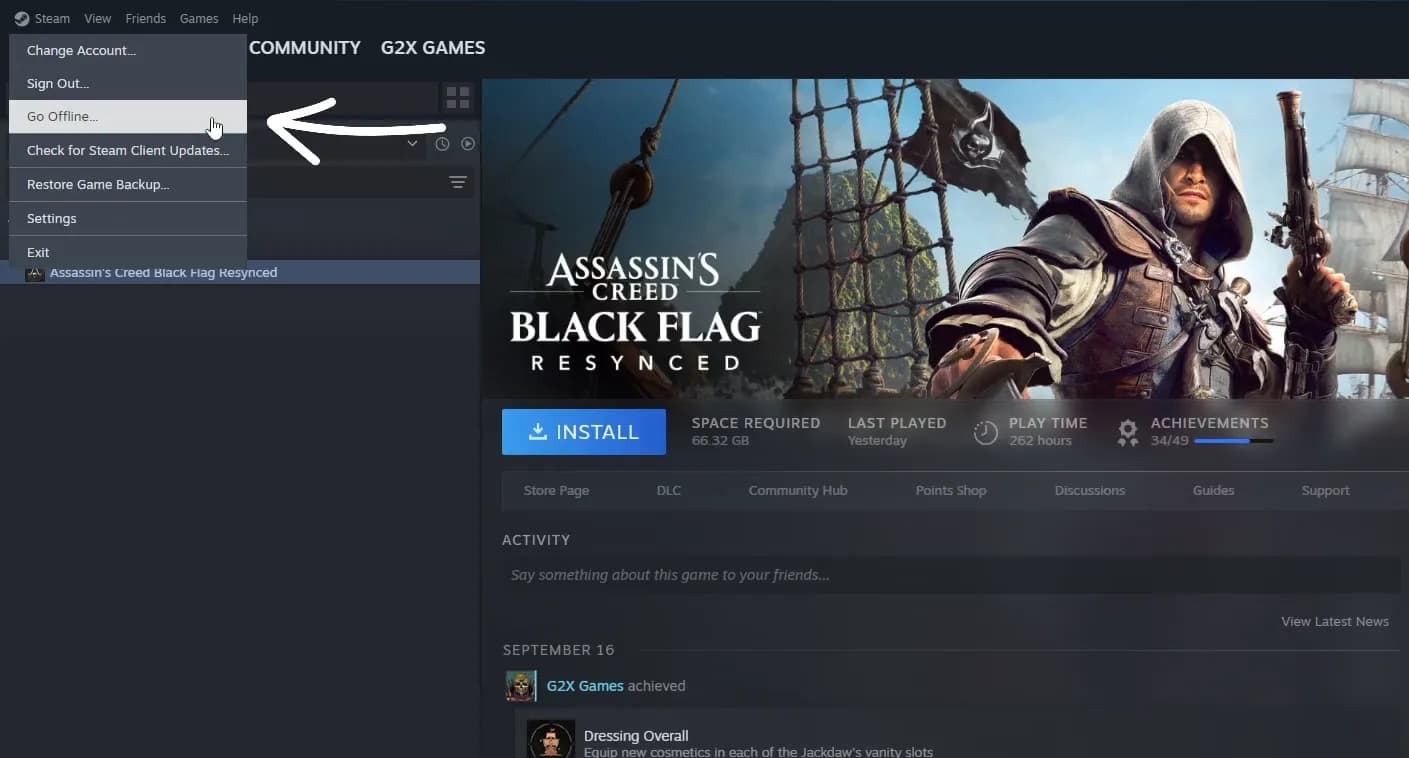
- Click Steam in the top-left menu bar of the Steam client.
- Select Go Offline from the dropdown menu.
- Steam will switch to Offline Mode immediately. You should see Steam is currently in Offline Mode displayed in the Steam client.
- Launch your game and enjoy your supported single-player campaign offline.
Frequently Asked Questions
Common questions and solutions for Steam offline mode
Other Platform Guides
Explore instructions for other gaming launchers



Still Need Help?
Having trouble with your game activation? Check our other guides or contact G2X Games Support for assistance.